

USB-C to 4K HDMI Multiport Adapter
Features
90W
Fast Charging

USB-C
3-Port Hub

Single
Monitor Output

Supports
Win • Chrome • Mac

4K UHD
3840 x 2160


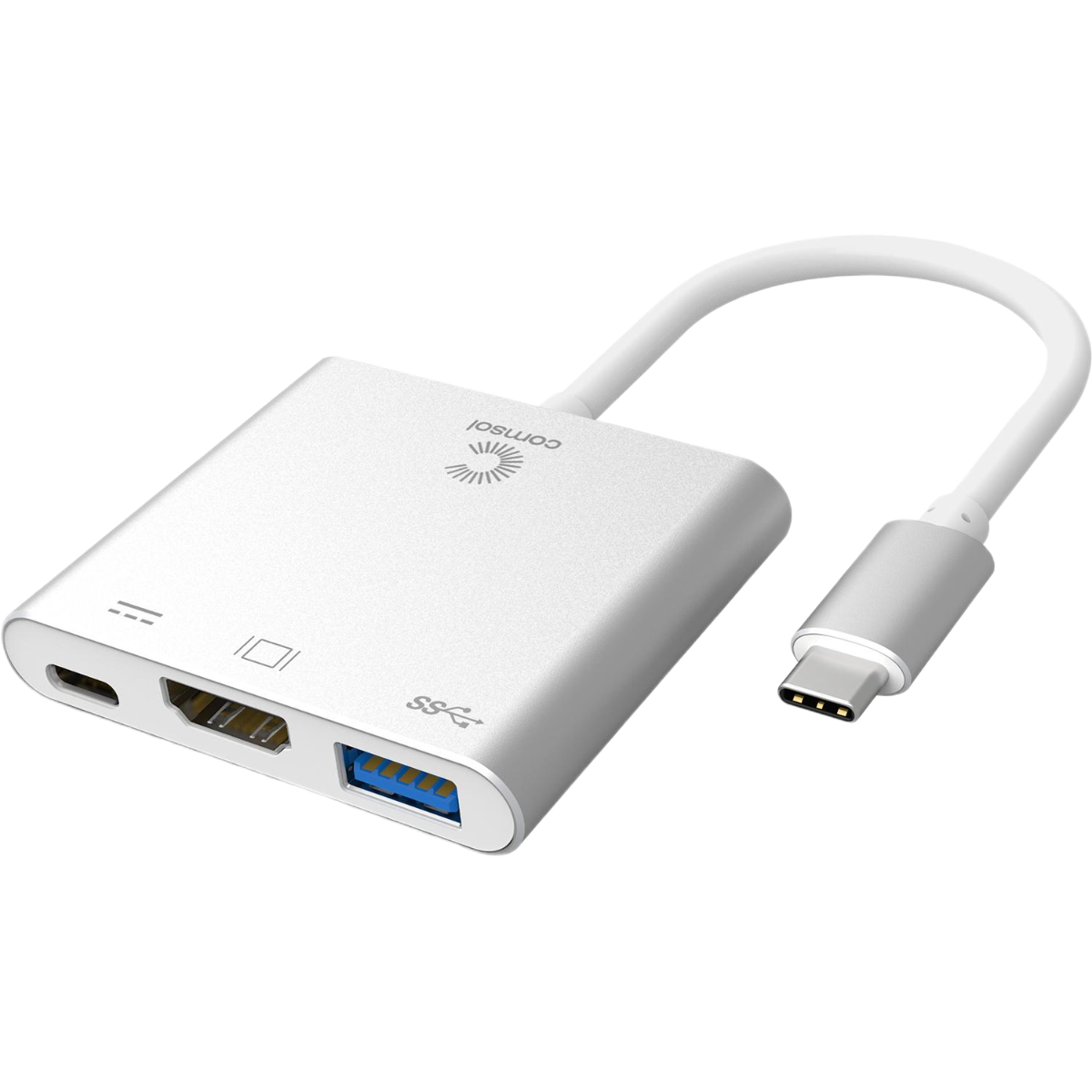
DUPLICATE, MIRROR OR EXTEND
Your monitor on a Windows laptop, MacBook or Chromebook
4K ULTRA HD
Support for 3840 x 2160 @30Hz
1080P HD
Support for 1920 x 1080 @60Hz
USB-C CHARGING
Supports USB-C chargers up to 140W and provides up to 90W of USB-C power for laptop charging
PLUG AND PLAY
No drivers or software required
Specifications
Charging Specs
Windows Monitor Support: Yes
Mac/Chrome Monitor Support: Yes
Max Single Resolution: 4K (3840 x 2160) @30Hz
Host Port Connection: USB-C
Expansion Ports: 1 x HDMI, 1 x USB-A 3.0, 1 x USB-C Power
Product Dimensions: 60 x 53 x 11mm
Product Weight: 44g
In The Box: 1 x CMMP05
OS Compatibility: Windows, MacOS, ChromeOS
Host Display USB-C Requirements: DisplayPort Alternate Mode (DP Alt-Mode)
Connectivity
HDMI

USB-A

USB-C

Compatibility
Video Output
Supports USB-C Video between supported devices, for example most:
- Windows Laptops
- ChromeOS Devices
Windows/ChromeOS Laptop Compatibility
Compatible with modern USB-C laptops that support video output over USB-C (DisplayPort Alt Mode).
Not supported on devices with data-only USB-C ports.
To check if your laptop supports video output over USB-C, look for a DisplayPort (DP), USB4 or Thunderbolt symbol next to the USB-C port.
If there are no markings next to the USB-C port, refer to the specifications listed in the user manual of your laptop. Look for mentions for “DisplayPort Alt Mode”, "Thunderbolt" or “USB-C video output.”
USB-C Ports without these indicators generally support data and charging only.
If you're unsure about the compatibility of your device, please check with our support staff either via the Live Chat in the bottom right of the page or support@comsol.com.au
Sustainability
THE SUSTAINABILITY HIERARCHY
The Sustainability Hierarchy empowers us to make eco-conscious choices at every stage of our products’ lifecycles, from refusing unnecessary items to recovering valuable resources, fostering a more sustainable future.
Making Informed Choices
All stages of the electronic product lifecycle are important to consider in order to be sustainable consumers. The Sustainability Hierarchy, also known as the Rs of Sustainability, is a valuable tool to help guide business and consumers in minimising our impact and making conscious choices.

As a brand it is important to consider which stage of the Sustainability Hierarchy aligns best with our efforts to minimise impact and contribute to a more sustainable future—particularly in early product design and manufacturing.
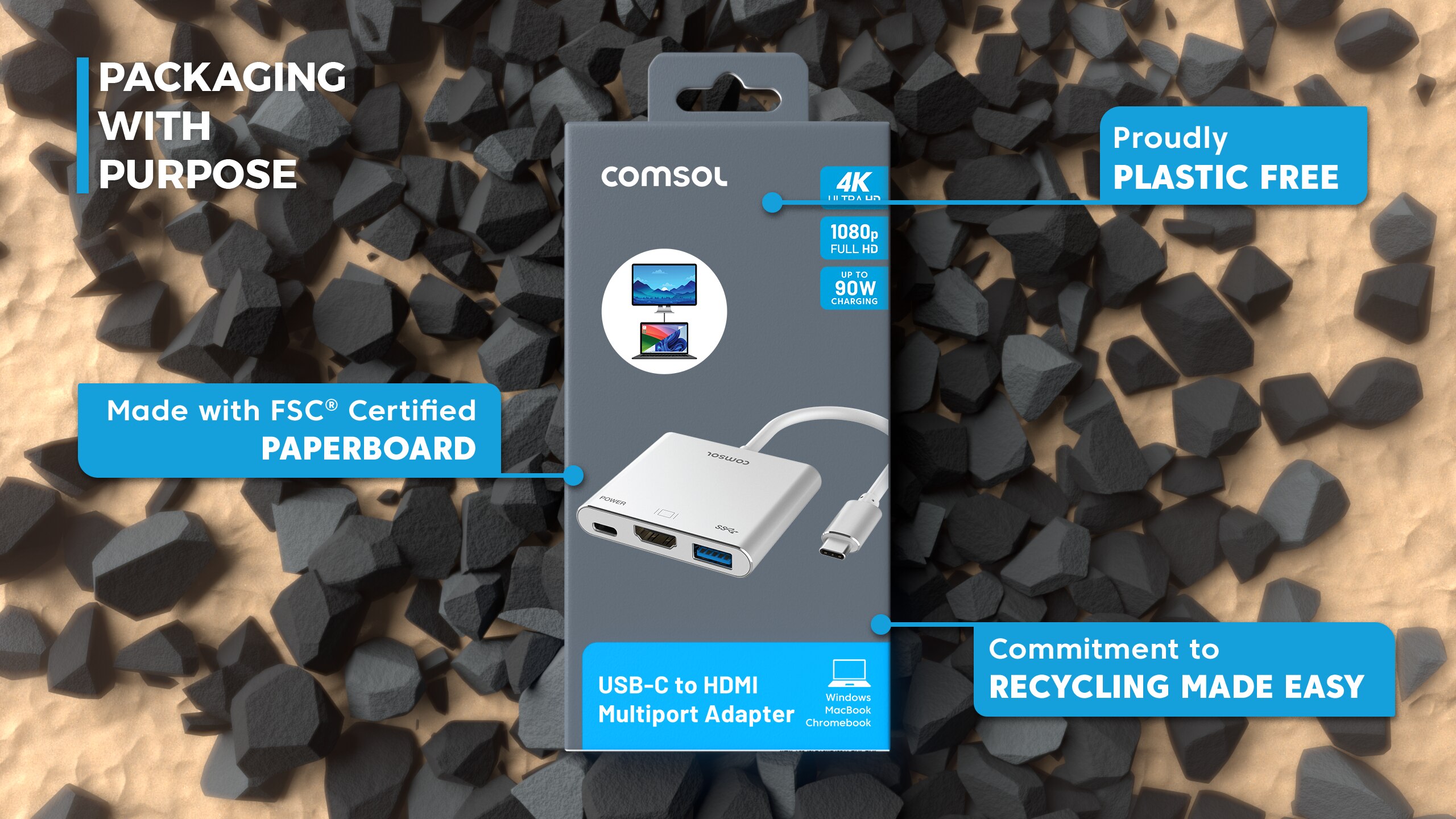
- Refuse: We have said no to unnecessary plastic and harmful materials in products and packaging.
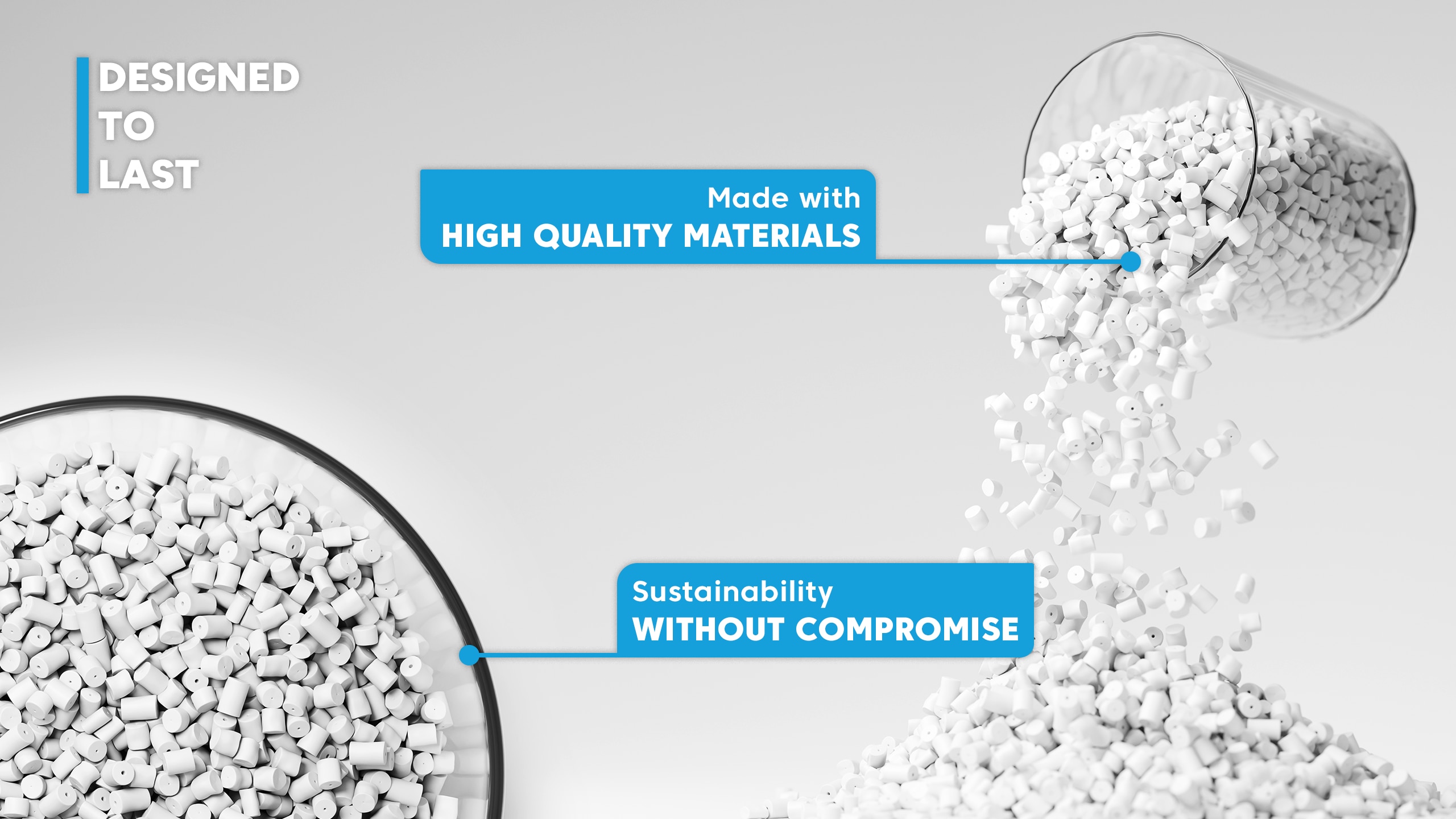
- Rethink: We investigate innovative solutions to extend product life through durability and multifunctional design.
- Reduce: We have reduced packaging volumes and optimised material usage in line with APCO assessments.
To view more click here.
FAQ
A: Intel sometimes releases Graphics Driver updates for Windows. Updating these latest official Intel drivers will usually fix any display issues you may be experiencing. Follow this link and update to the latest official drivers for your system and then reboot your system
Q: My displays were fine, but they have stopped working, what has happened?
A: Intel sometimes releases Graphics Driver updates for Windows. Updating these latest official Intel drivers will usually fix any display issues you may be experiencing. Follow this link and update to the latest official drivers for your system and then reboot your system
Q: I have a Mac, will this work for me?
A: Yes every port on this adapter works on Mac & Chrome
Q: I have plugged in the adapter and the USB ports work but when I plug in my monitors they don’t display anything, what am I doing wrong?
A: This display output of this adapter works on a technology called DisplayPort Alternate mode, often referred to as DP-Alt Mode. USB-C ports all look the same but your laptops manufacturer chooses what features to support. Video output is often not supported. Pleases check your User Manual or website to see if your USB-C port supports video. In there, if you see that your port supports Thunderbolt 3 or 4, or mentions supports DP-Alt Mode then your display output should work
Q: My manual says my port is SuperSpeed (SS) and USB 3.2 Gen 2, is that enough? Can I download drivers to fix it?
A: Unfortunately neither of those protocols supports video output. This is a hardware issue that cannot be resolved by updating software or drivers. It is common on many laptops even new and expensive ones.
Q: So are you telling me that there is nothing else I can do? I just bought this laptop and dock and it can’t do what I need?
A: We understand your frustration, but fear not, we do have a solution for you. Because this was such a common problem that affects so many people we had to find a way around the issue. We have 3 new products that use special chip sets called DisplayLink. This technology is like an external graphics card the accepts video output from a USB-A 3.0 or any USB-C port. Windows has DisplayLink drivers as part of the OS so again it’s plug and play and should work right out of the box. Our CMDL22P has Dual Video Output at 1080p (Full HD) and other ports in a handy portable adapter. The CMDL32D or CMDL24D are both full docking stations with Power Supplies like the CMMP14
Q: My friend has a DisplayLink dock, I heard that its really slow and has to record your screen. Is that safe?
A: DisplayLink technology is from Synaptics, one of the worlds premier, largest and most trusted chip set suppliers. Also the main choice for docks for the likes of Dell & Lenovo. Manufacturers and consumers love DisplayLink because it offers a solution to the USB-C video problem, it truly is Universal. We use it here with dual 4K screens running @60Hz for office work DisplayLink is so fast that in most cases you wont even know its running. If you are an extreme or demanding gamer however, this technology may not meet your needs but for everyone else it is perfect. As for ‘recording your screen’ well yes that's true, the technology essentially emulates and extends your desktop. You may encounter on a Mac or certain other operating systems a check-box during setup that asks you if you give permission for the DisplayLink manager to ‘record your screen’. If you do not accept the DisplayLink technology will not work, so the choice is yours whether you want your USB port to output video or not. Please understand though that this is already happening in Windows as this technology is built in to the Windows OS. Please remember, your screen is not being recorded by anyone externally, nor is any information being saved or stored externally or shared with anyone. The ‘recording’ is the DisplayLink graphics card recording your existing desktop then the chip uses this information to create your new extended screens
Q: The adapter is connected but is unresponsive, what should I do?
A: Sometimes after a longer period of inactivity the sleep function may not wake up in normal way. In this case, or if the dock becomes unresponsive, first try unplugging and re plugging the USB-C connection, if this fails, disconnect the adapter from the power and re boot your system, if you are still having problems please contact Comsol support
Q: I plugged in my adapter but I get the same image on both screens. How do I get different images on each screen?
A: Right click the mouse on your desktop and select “Display Settings” In this App, scroll down to find the “Multiple Displays” dropdown menu and select the “Extend desktop to this display” option. This app is where you can also select your desired resolution of your display and in the ‘Advanced Display Settings” you can also select your desired screen refresh rate
